I've recently switched my blog from WriteFreely to a custom-built solution: MD-Blog (MD, of course, stands for Markdown). The trigger was a failed update of the old system – but in the end, it was the perfect incentive to radically simplify everything and gain full control over the design.
The core consists of simple Markdown files in the data/ folder, which are converted into modern HTML at runtime. The result is lightning fast, works without a database, and thanks to a custom design system (including dark mode), it now looks exactly as I imagined. Even a modern Mastodon share button is now directly on board.
If you're interested in the code or the lean setup, feel free to reach out to me via Mastodon!
Actually, the idea behind #Winboat is great, but the implementation still seems a bit unstable. It had been running since the installation at the beginning of the year, but today the software completely refused to work.
The image suddenly reported insufficient RAM. I tried to fix it somehow, but unfortunately, that ended up breaking everything for good. Instead of spending more time troubleshooting, I switched directly to the Dockurr Windows Image – which is the technical basis of Winboat anyway.
1. My Preparation
Since I use Podman, the first thing I did was create the necessary folders on my host system. This way, the data won't be lost if the container ever needs to be recreated:
mkdir -p $HOME/Windows/System
mkdir -p $HOME/Windows/Shared
2. The Start Command
Don't forget: Replace the placeholders in -e USERNAME and -e PASSWORD with your own credentials.
podman run -d \
  --name windows \
  -p 8006:8006 \
  --device=/dev/kvm \
  --cap-add NET_ADMIN \
  -e RAM_SIZE="8G" \
  -e USERNAME="Carsten" \
  -e PASSWORD="1234" \
  -e LANGUAGE="German" \
  -v $HOME/Windows/System:/storage:Z \
  -v $HOME/Windows/Shared:/shared:Z \
  --stop-timeout 120 \
  dockurr/windows
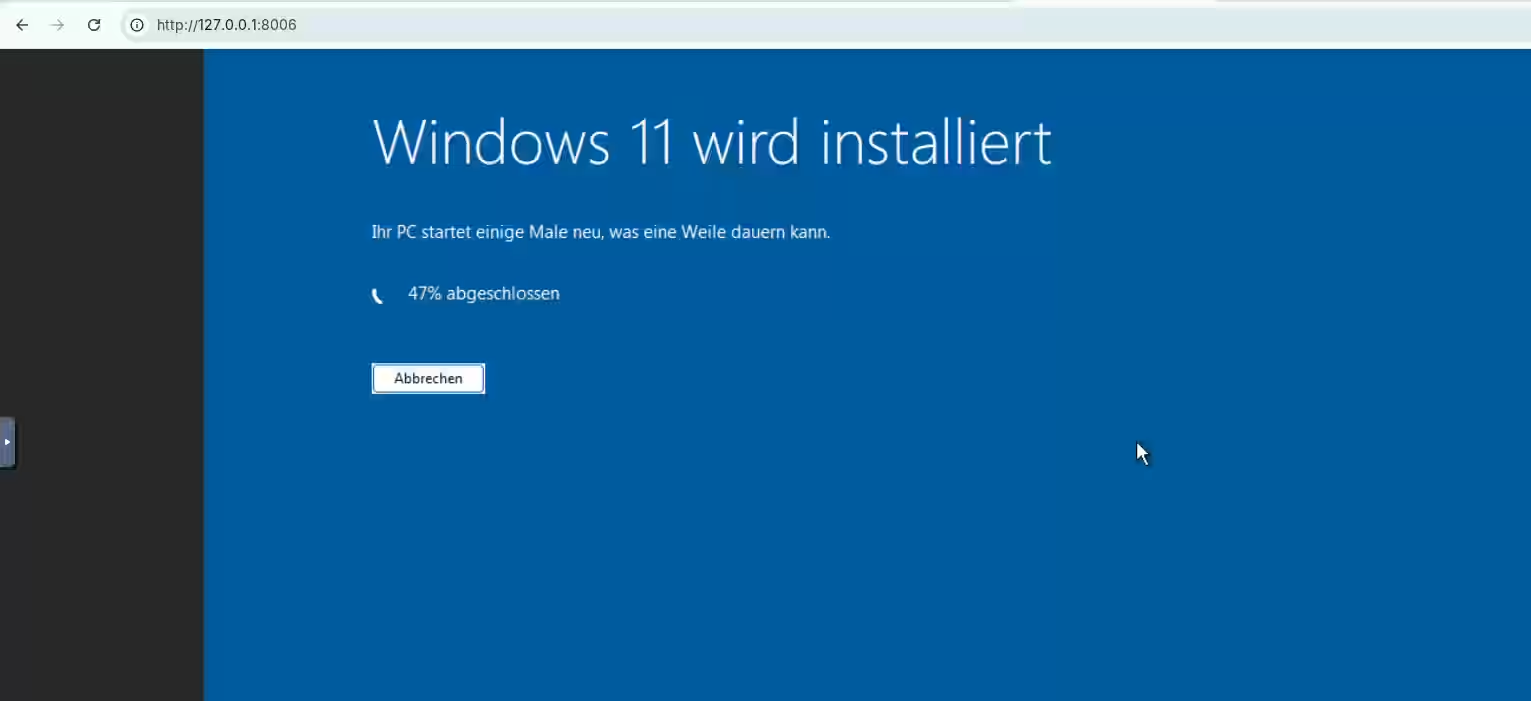
Once the container is running, you can access the new Windows directly via your browser:
http://127.0.0.1:8006
3. Summary
I only had to run the long command above once. In everyday use, I now control my Windows comfortably using these shortcuts:
- Start:
podman start windows
- Stop:
podman stop windows (or simply shut down within Windows)
- Check status:
podman ps -a
Related Links:
I've set up my own blog — primarily to get to know #NixOS better. Surprisingly, it was all quite straightforward.
WriteFreely is a great fit for this: minimalist, quick to set up, and without much bloat. Perfect for just getting started and learning something along the way. The configuration is pleasantly clear. Set a few options, prepare the directory, put a reverse proxy in front — done.
This is what my current NixOS config for it looks like:
{ config, pkgs, ... }:

{
  services.writefreely = {
    enable = true;
    host = "blog.burningboard.org";
    settings = {
      server = {
        port = 8080;
        min_log_level = "debug";
      };
      app = {
        host = "https://blog.burningboard.org";
        single_user = true;
        landing = "/read";
        wf_modesty = true;
        federation = true;
        public_stats = true;
        theme = "write";
      };
    };
    stateDir = "/opt/writefreely";
  };

  # Fix for ActivityPub key generation: federation requires openssl
  systemd.services.writefreely.path = [ pkgs.openssl ];

  # Automatically create the data directory with correct permissions
  systemd.tmpfiles.rules = [
    "d /opt/writefreely 0700 writefreely writefreely -"
  ];

  services.caddy.virtualHosts."blog.burningboard.org".extraConfig = ''
    reverse_proxy 127.0.0.1:8080 {
      header_up Host {host}
      header_up X-Real-IP {remote_host}
      header_up X-Forwarded-For {remote_host}
      header_up X-Forwarded-Proto {scheme}
    }
  '';
}
That's essentially it. NixOS makes it really easy to configure such services cleanly and keep them reproducible.