
Actually, the idea behind #Winboat is excellent, but the implementation currently seems a bit unstable. Since the installation at the start of the year, the system had been running, but today the software completely stopped working.
The image suddenly reported insufficient memory (RAM). I tried to fix the problem manually, which unfortunately rendered the system permanently unusable. Instead of investing more time in troubleshooting, I switched directly to the Dockurr Windows image – which forms the technical basis of Winboat anyway.
1. Preparation
Since I use Podman, I first created the necessary directories on my host system. This ensures data integrity if the container needs to be recreated:
mkdir -p $HOME/Windows/System
mkdir -p $HOME/Windows/Shared
2. The start command
Important note: Replace the placeholders in the -e USERNAME and -e PASSWORD variables with your personal login credentials.
podman run -d \
  --name windows \
  -p 8006:8006 \
  --device=/dev/kvm \
  --cap-add NET_ADMIN \
  -e RAM_SIZE="8G" \
  -e USERNAME="Carsten" \
  -e PASSWORD="1234" \
  -e LANGUAGE="German" \
  -v $HOME/Windows/System:/storage:Z \
  -v $HOME/Windows/Shared:/shared:Z \
  --stop-timeout 120 \
  dockurr/windows
Once the container is active, you can access the Windows instance directly via your browser:
http://127.0.0.1:8006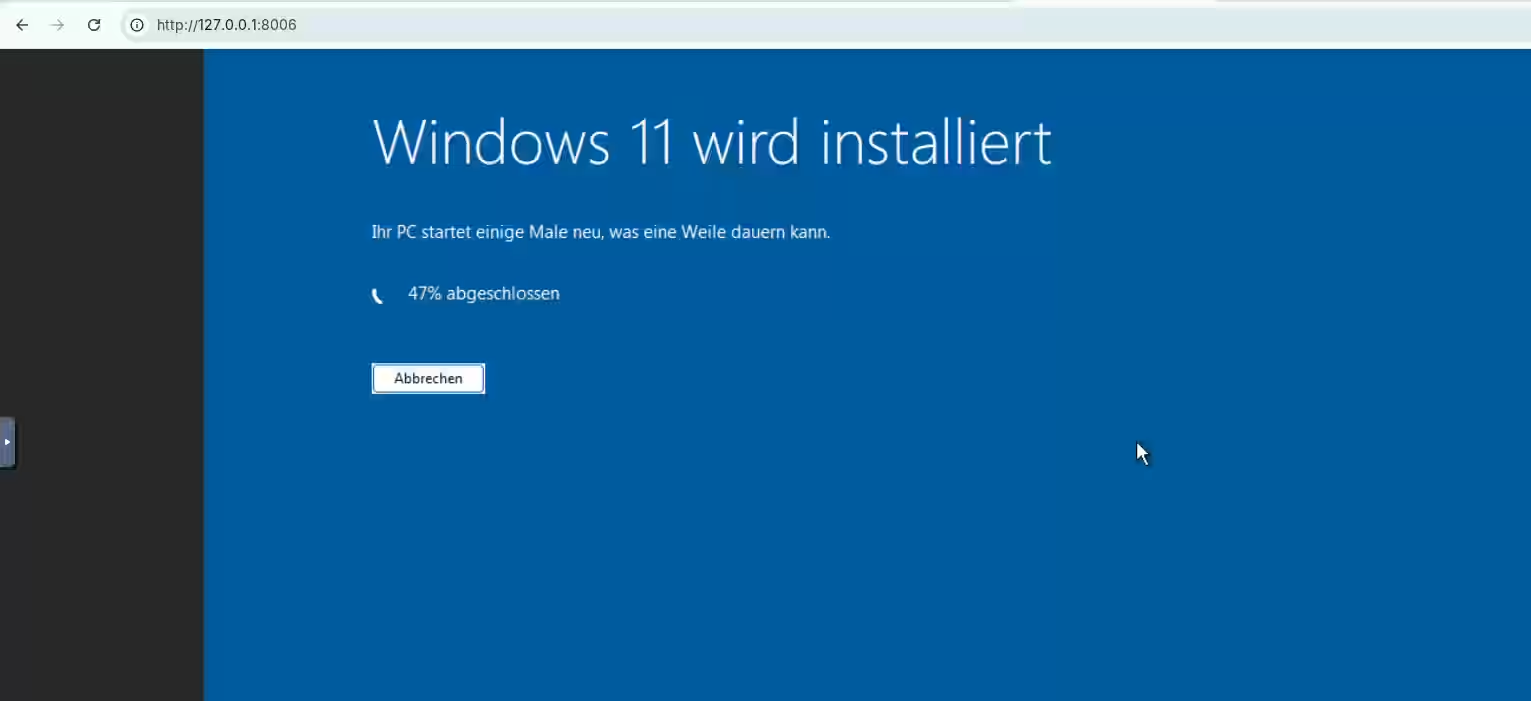
3. Summary
I only had to run the command above once. In daily operation, the Windows environment can now be conveniently controlled using these shortcuts:
- Start:
podman start windows - Stop:
podman stop windows(or shut down directly within Windows) - Check status:
podman ps -a
Further links:
- The image used: GitHub - dockur/windows
- The original app: Winboat.app
- Podman project page: Podman