
Actually, the idea behind #Winboat is excellent, but the implementation currently seems to be a bit unstable. Since the installation at the beginning of the year, the system had been running, but today the software completely refused to work.
The image suddenly reported insufficient memory (RAM). I tried to fix the problem manually, which unfortunately rendered the system completely unusable. Instead of investing more time in troubleshooting, I switched directly to the Dockurr Windows image – which is the technical foundation of Winboat anyway.
1. Preparation
Since I use Podman, I first created the necessary directories on my host system. This ensures data integrity if the container needs to be recreated:
mkdir -p $HOME/Windows/System
mkdir -p $HOME/Windows/Shared
2. The Start Command
Important note: Replace the placeholders in the -e USERNAME and -e PASSWORD variables with your personal credentials.
podman run -d \
  --name windows \
  -p 8006:8006 \
  --device=/dev/kvm \
  --cap-add NET_ADMIN \
  -e RAM_SIZE="8G" \
  -e USERNAME="Carsten" \
  -e PASSWORD="1234" \
  -e LANGUAGE="German" \
  -v $HOME/Windows/System:/storage:Z \
  -v $HOME/Windows/Shared:/shared:Z \
  --stop-timeout 120 \
  dockurr/windows
Once the container is active, you can access the Windows instance directly via your browser:
http://127.0.0.1:8006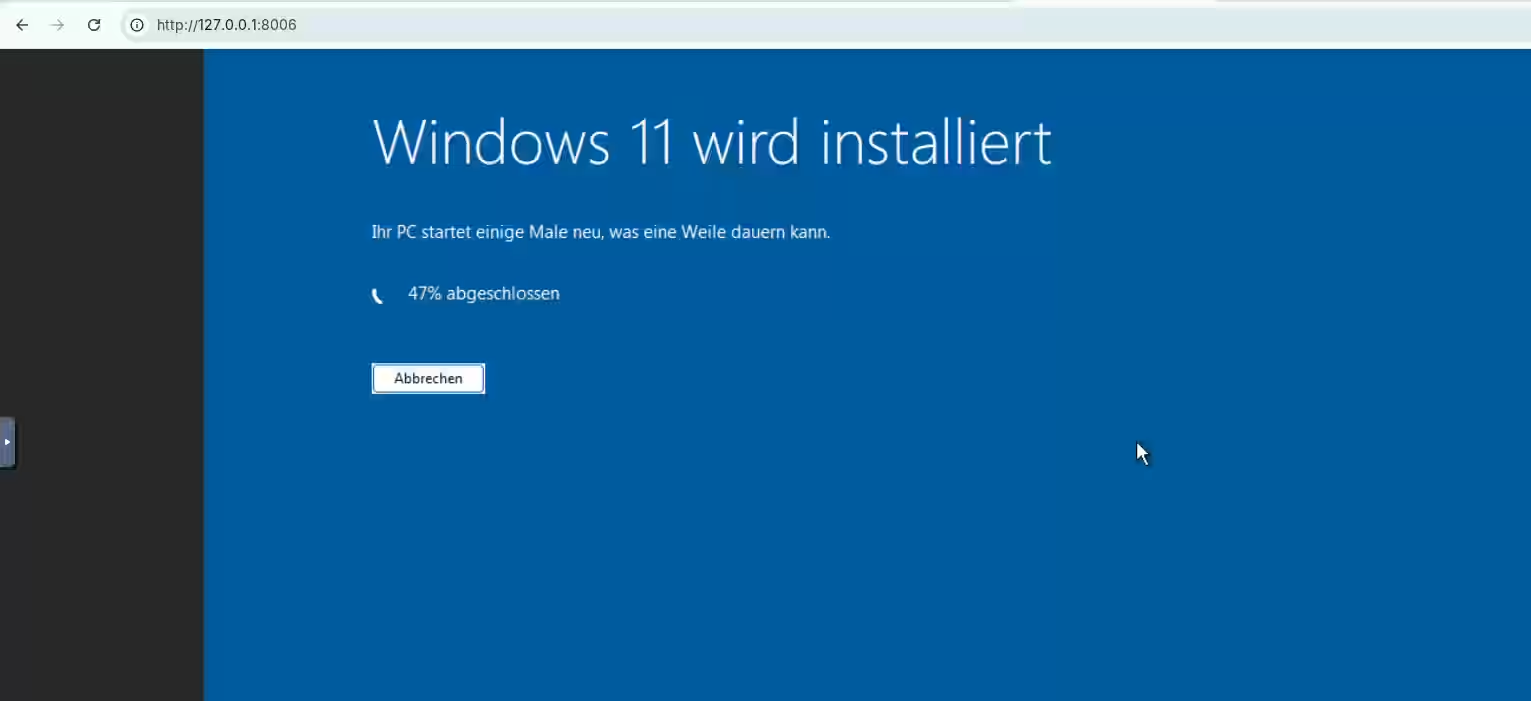
3. Summary
I only had to run the command above once. In daily operation, the Windows environment can now be conveniently controlled using these shortcuts:
- Start:
podman start windows - Stop:
podman stop windows(or shut down directly within Windows) - Check status:
podman ps -a
Further links:
- The image used: GitHub - dockur/windows
- The original app: Winboat.app
- Podman project page: Podman